Your issues,
everywhere at once.
A VS Code extension that gives you a proper columned, sortable, searchable issue tracker — synced bidirectionally with GitHub, and wired directly into Claude and Gemini AI chat as a context source.
The problem it solves
When working across multiple apps and platforms — like Papka's Android and Web versions simultaneously — issues pile up fast. Right now, that tracking typically happens in spreadsheets: disconnected from code, disconnected from GitHub, and completely invisible to AI assistants.
The result: every time you open Claude or Gemini and say "fix the avatar bug", the AI has zero context. You re-describe the issue from scratch every time. Caspian Taskmaster closes that loop.
Issues in spreadsheets have no link to code, commits, or GitHub — they live and die in a separate tab.
GitHub Issues UI requires leaving VS Code entirely, breaking flow every time you want to log or review.
AI assistants have no knowledge of your issues without manual copy-paste — and then only for that one session.
What it is
Caspian Taskmaster is a VS Code extension built in TypeScript with three layers that work together as one system.
The two views
Sidebar panel
A compact live list sitting in the VS Code activity bar. Always visible while you code. Shows issue count, pending sync indicator, and quick access to create or copy any issue. The glanceable version — you see what's active without leaving your current file.
Since v1.27.0 this is a purpose-built narrow layout rather than the full table squeezed into a column: tasks are grouped under collapsible, colour-coded status headers with a count on each, priority shows as a coloured dot, and a one-line quick-add box at the top files a task without opening a form. Set caspianTaskmaster.sidebarLayout to full to go back to the whole tracker table in the sidebar.
Full tracker tab
Opens as a VS Code editor tab. This is the full power view: a proper table with every column, sorting on any field, live search across all text fields, multi-filter dropdowns for status / type / priority / platform, inline editing via double-click, and the full change log for any issue.
The tab title dynamically updates — when there are unsynced changes it shows Caspian Taskmaster (3 pending) so you always know your sync state at a glance.
The filter drawer
Filters live in a slide-in drawer opened by the funnel button next to the search box, at any window width — so the toolbar carries only search, the funnel, and your actions instead of six dropdowns competing for space. The funnel shows a badge counting how many filters are active, and the drawer has a Clear all button. Prefer the old inline row? Dock to toolbar in the drawer puts it back, and the choice is remembered.
Fluid (narrow-mode) layout
When the tracker is docked at half-width in the activity-bar side bar (below 400 px), the toolbar reshapes itself: button labels collapse to icons, the view auto-switches to Table (your preferred view is restored as soon as you widen the panel back), and saved-views / TODOs / Metrics join the filters in the drawer. Filter state and event listeners are preserved across the transition so nothing has to re-load.
Look and motion
v1.27.0 gave the whole extension a visual pass. The Kanban board colour-codes each column by status and each card by priority, with cards that lift on hover and tilt as you drag them. The table gained an opaque sticky header and zebra striping. The metrics dashboard now has real stat cards, bars that animate their fill and numbers that count up. Badge colours are derived from your theme's own chart palette, so they stay readable on light themes as well as dark. Everything respects your operating system's reduce motion setting.
See it in action
A visual tour of the key views, captured from the real extension against a demo project with npm run screenshots. Images are hosted in the public Public-Assets repo, in dark and light variants.
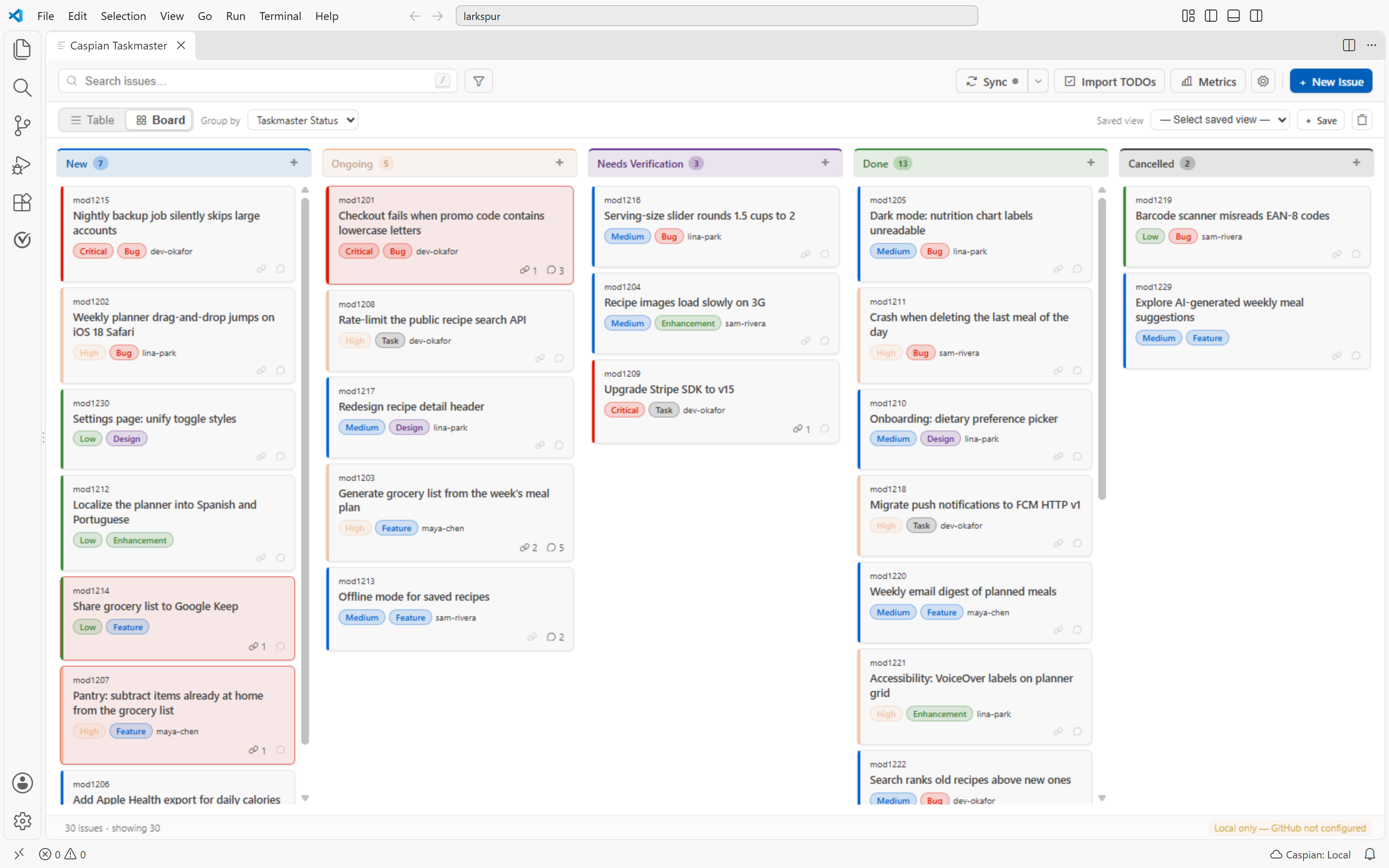
Kanban board Drag-and-drop issues across five status lanes — New, Ongoing, Needs Verification, Done, Cancelled. Blocked issues are highlighted.
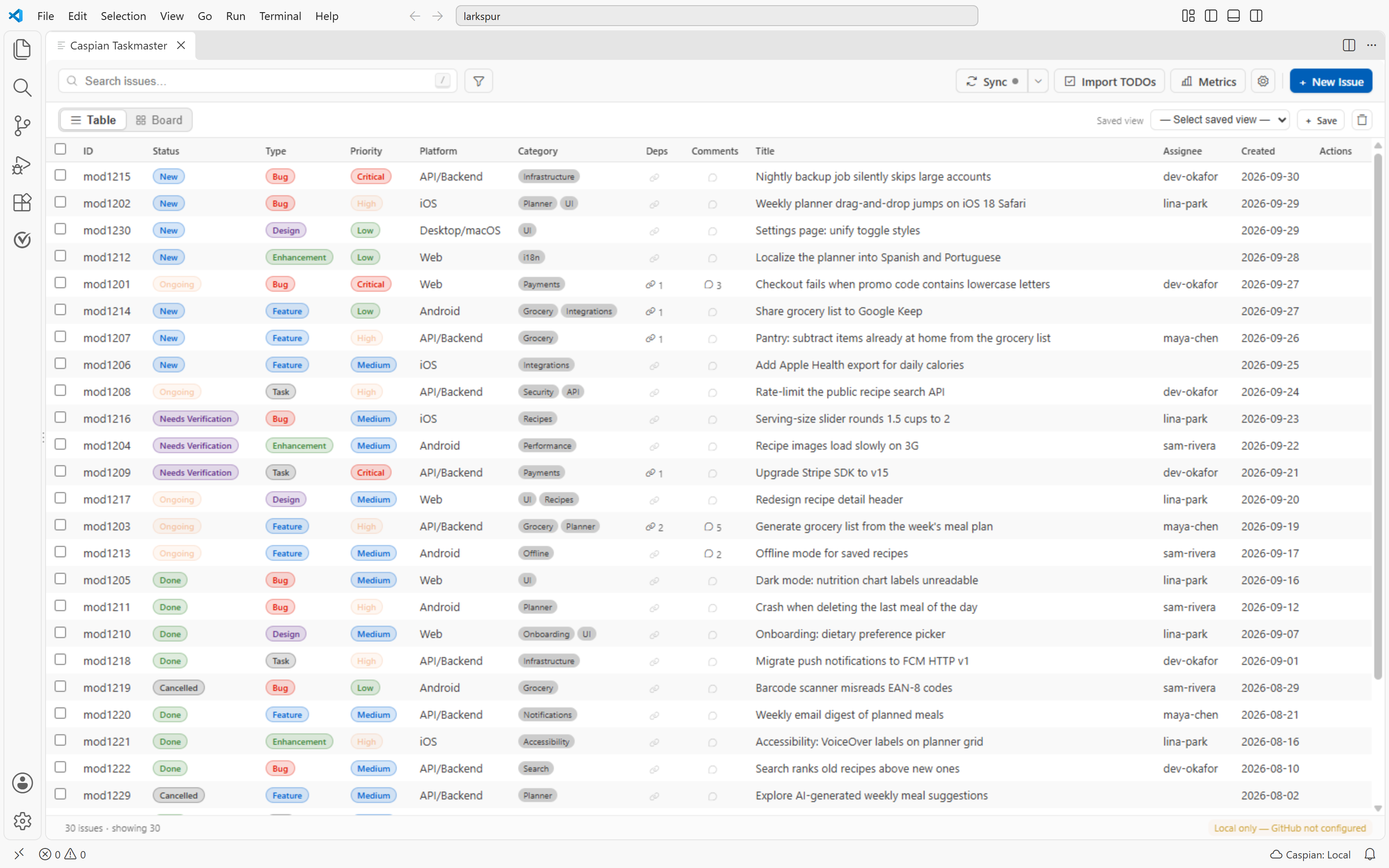
Table view Sortable, filterable, bulk-selectable table with dependency and comment counts on every row.
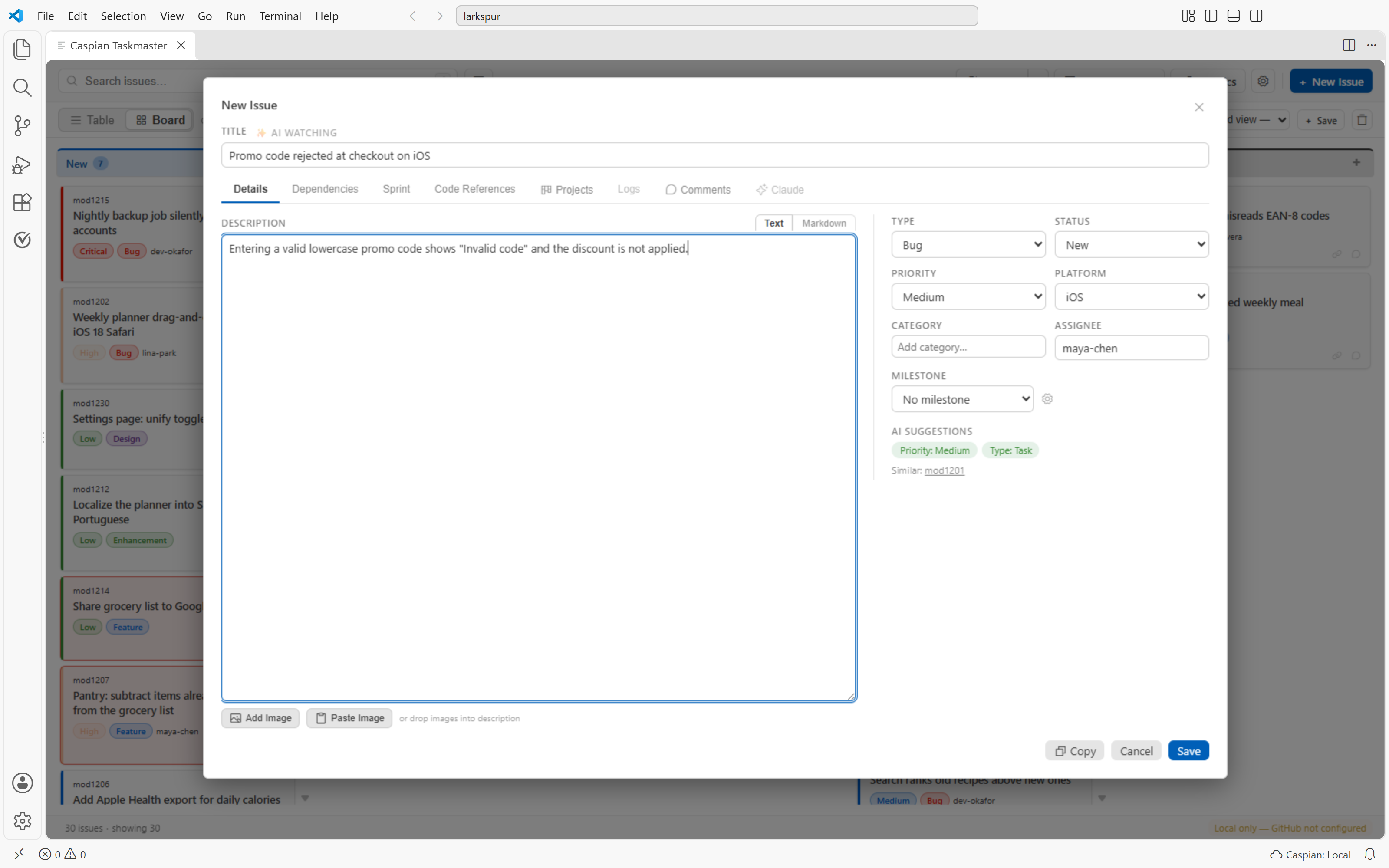
New issue & AI triage Priority and type suggestions appear as you type, and a similar existing issue is flagged before you create a duplicate.
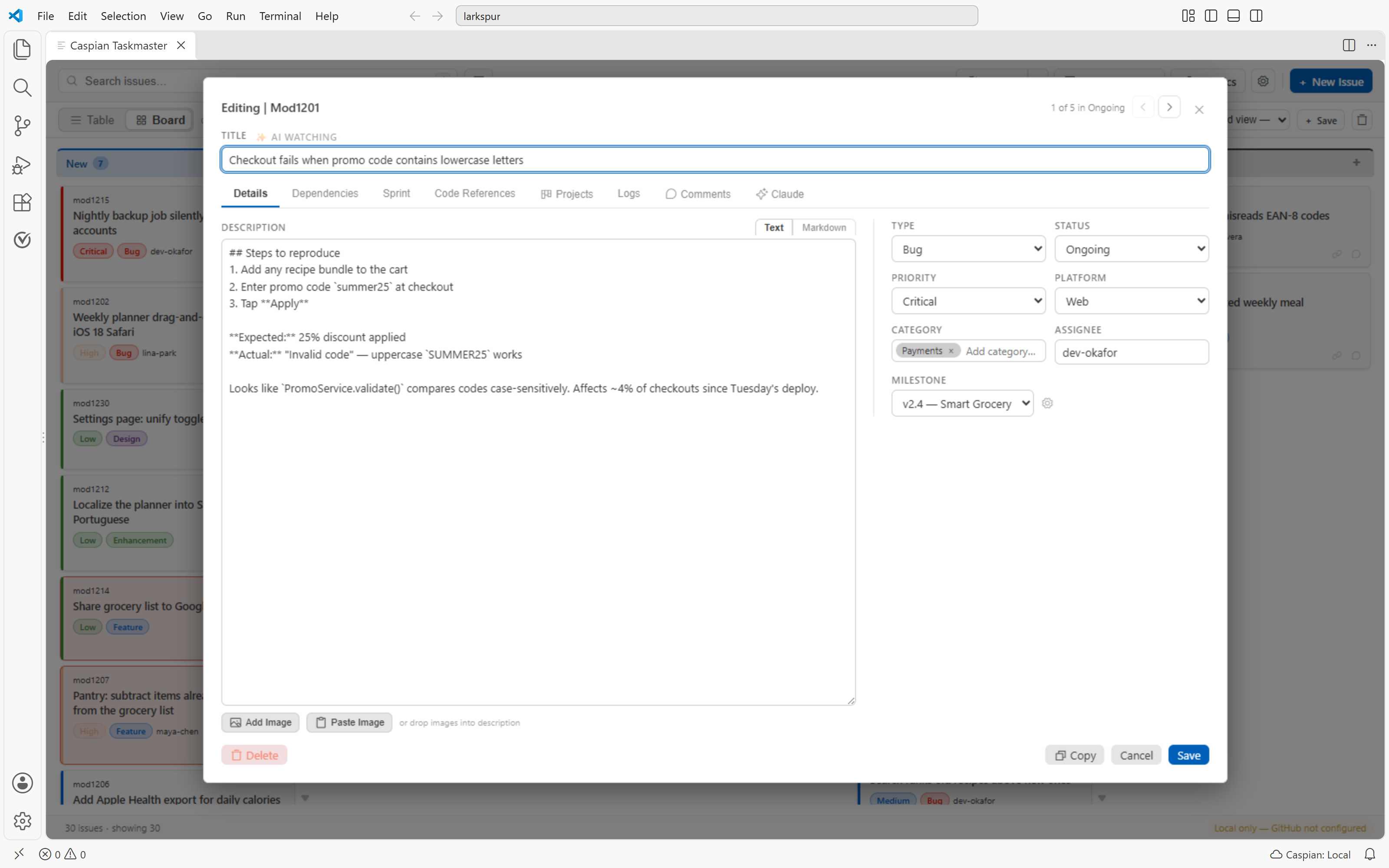
Issue popup Markdown description, every field, and previous/next navigation through the issues in a lane.
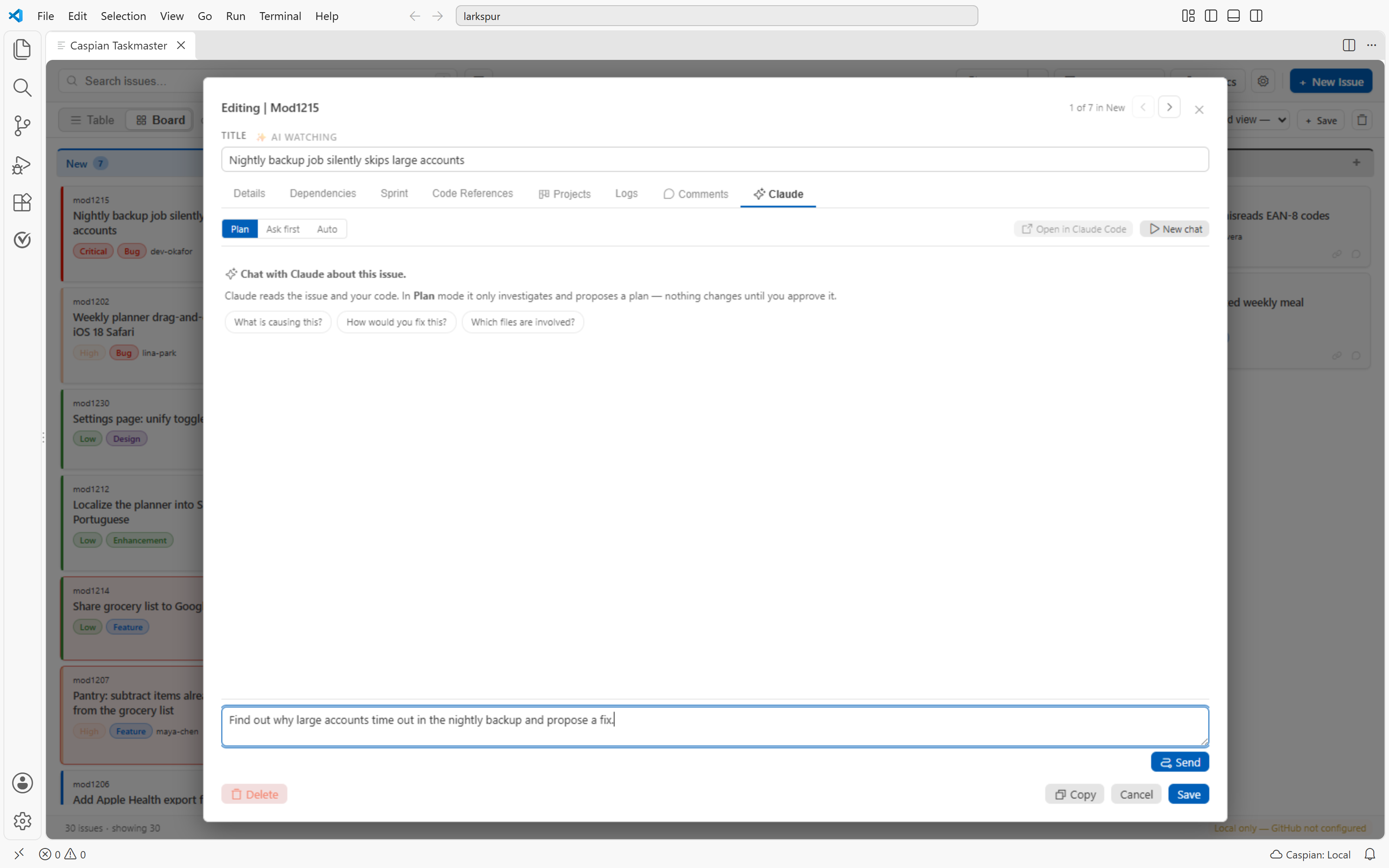
Claude chat Discuss an issue with the Claude Code you already use. Plan mode investigates and proposes; nothing changes until you approve.
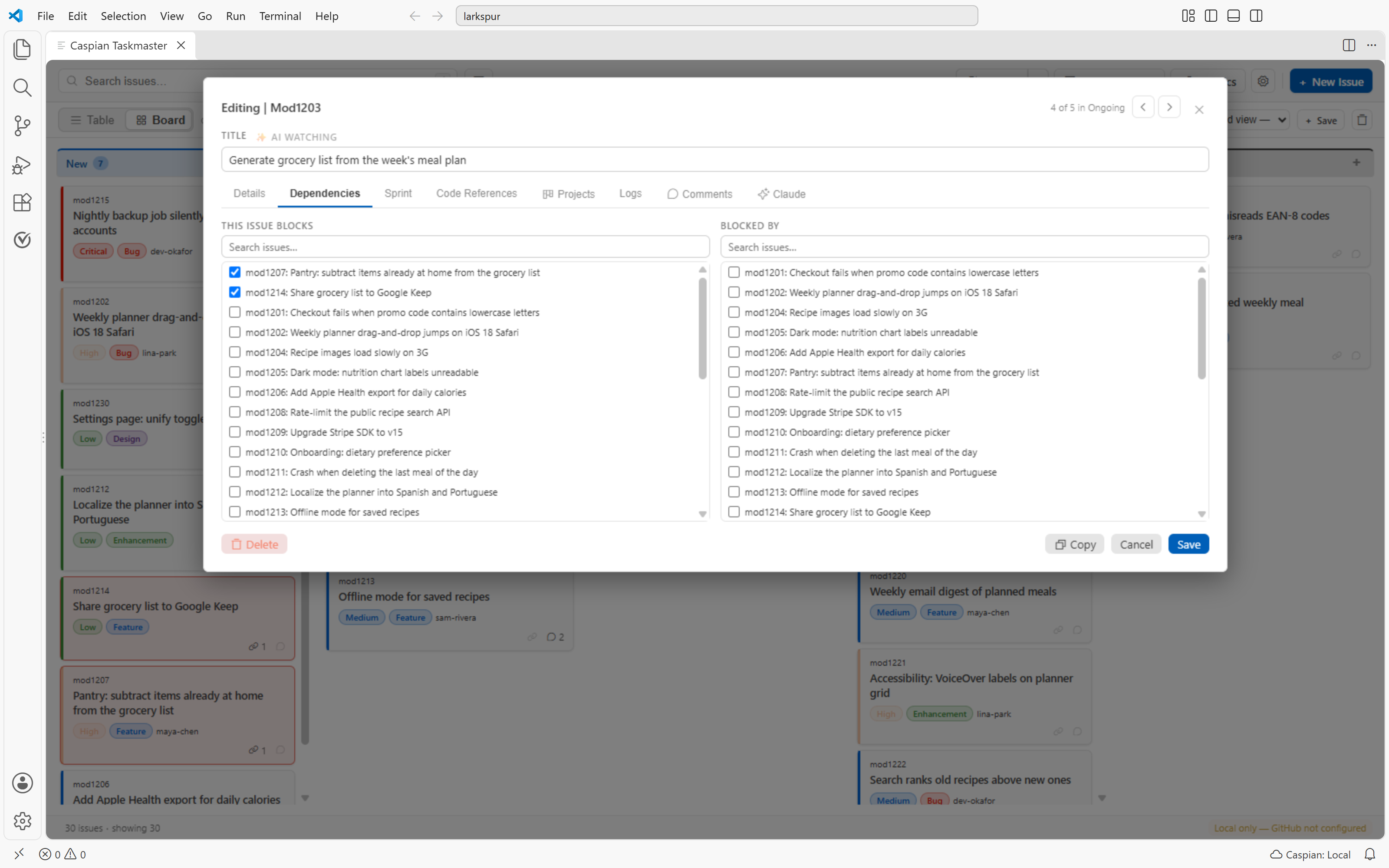
Dependencies Blocks and blocked-by links with cycle detection.
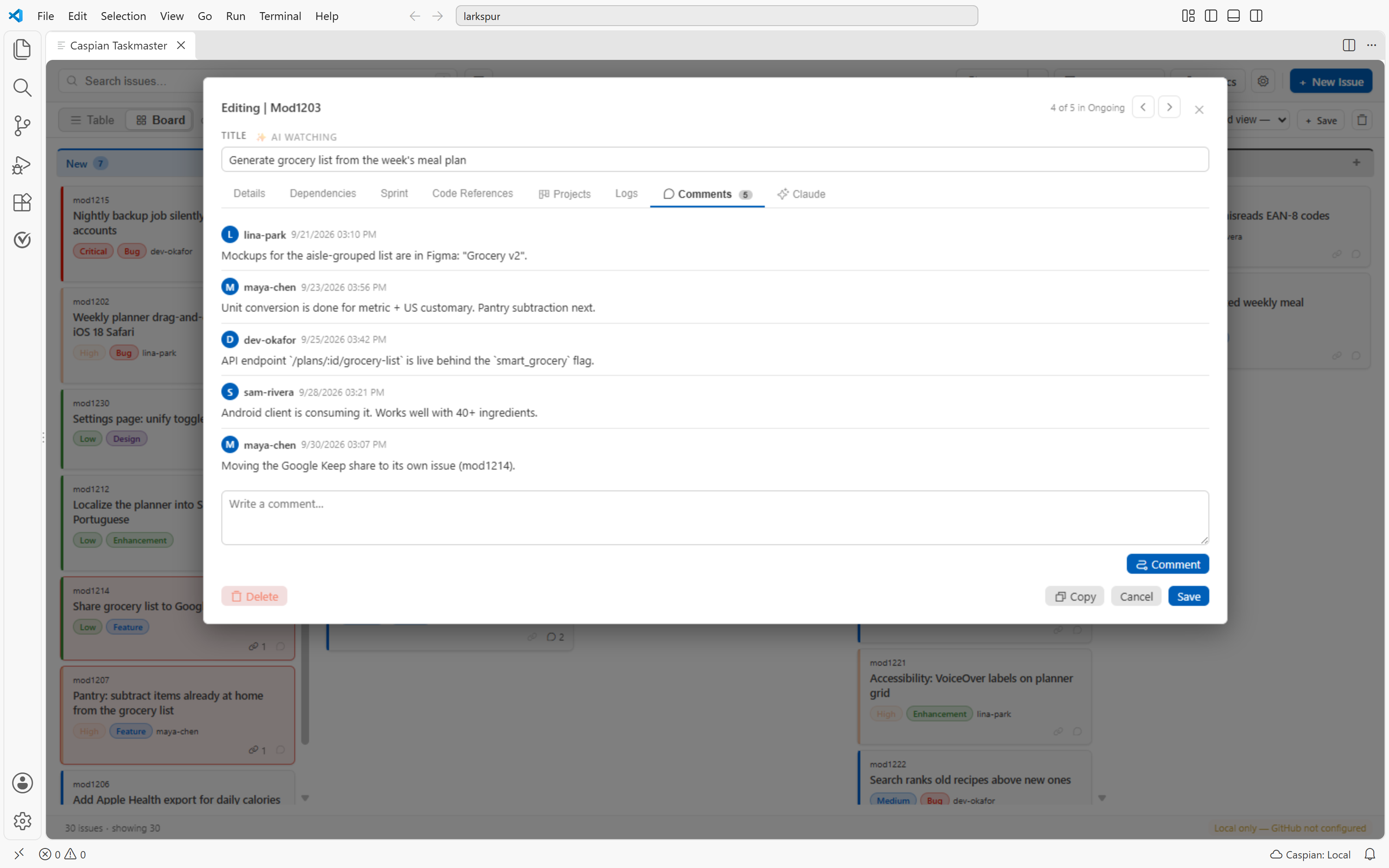
Comments Comment offline on any issue; comments sync to GitHub on the next push.
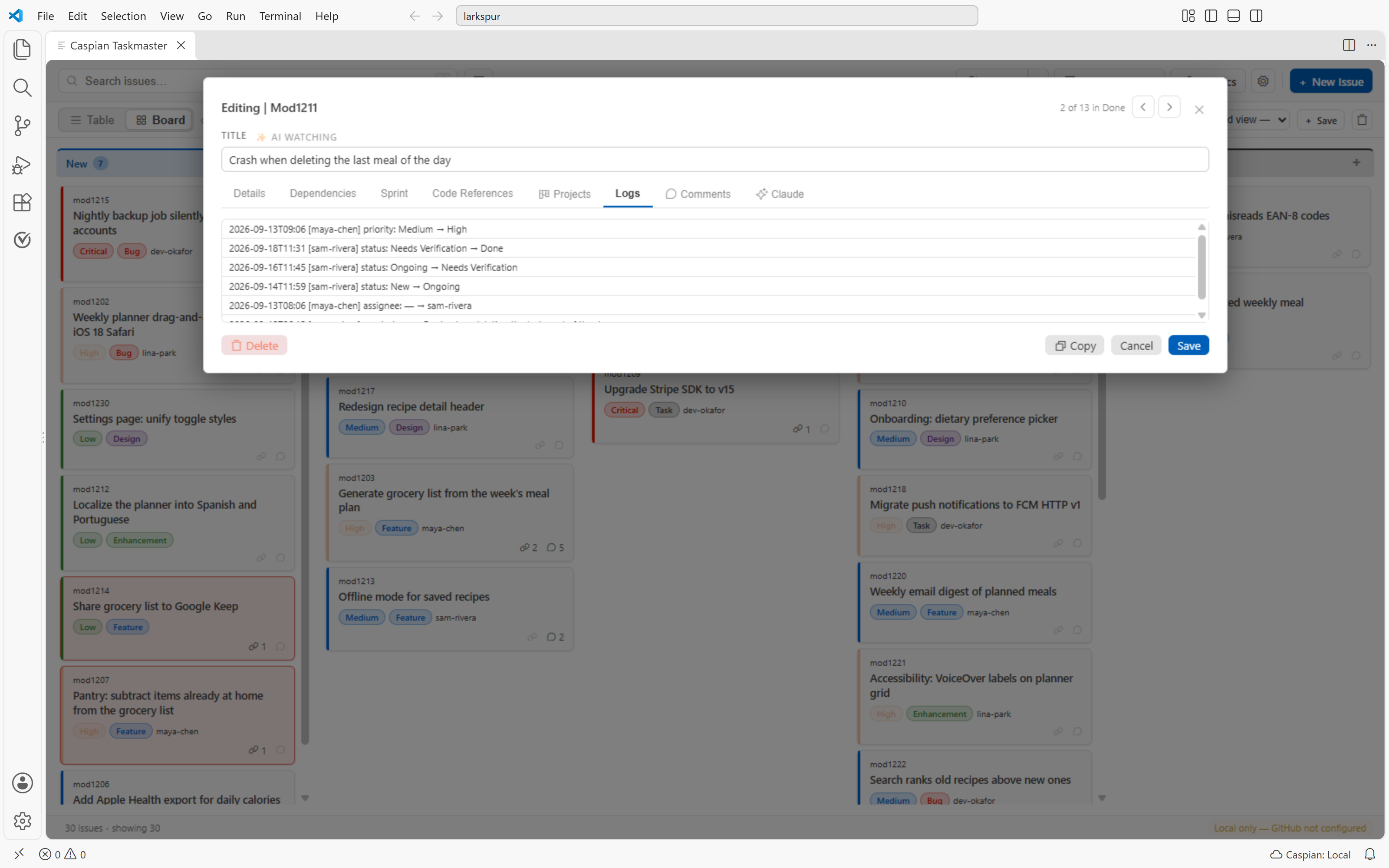
Audit log Every field change logged with author, timestamp, and old/new values.
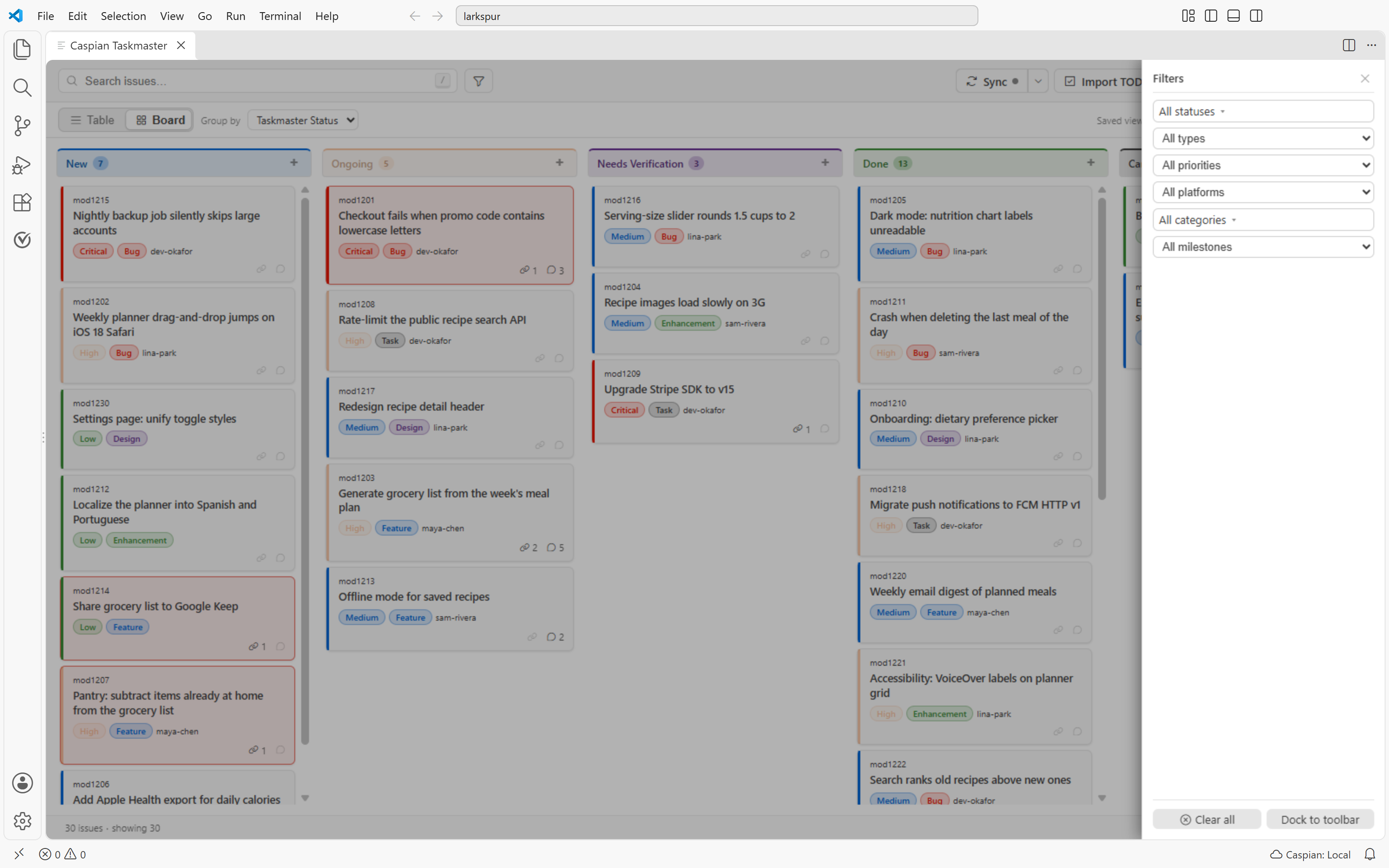
Filter drawer Status, type, priority, platform, category and milestone filters in a slide-in drawer.
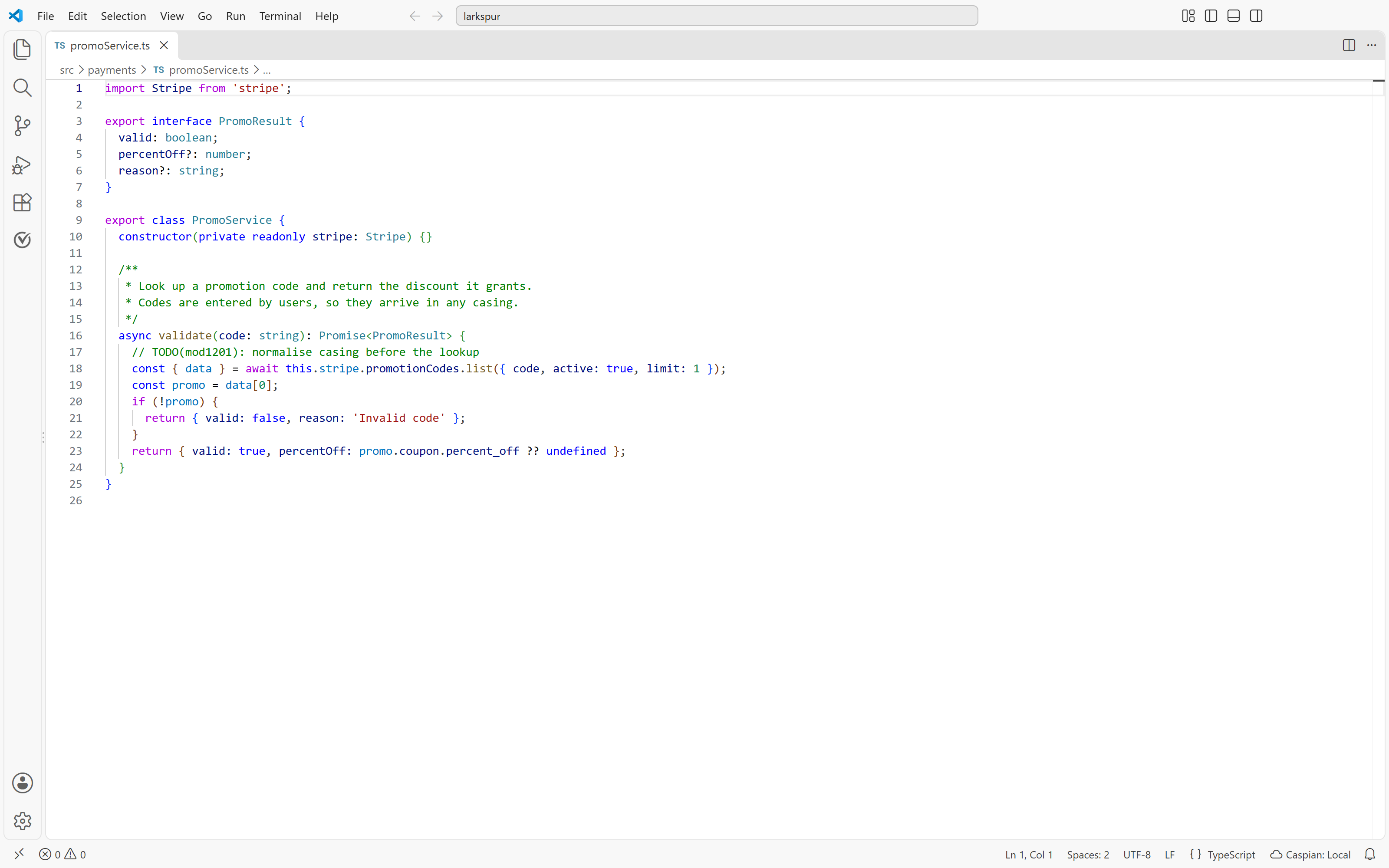
Sidebar panel Issues grouped by status in the activity bar, always visible while you code.
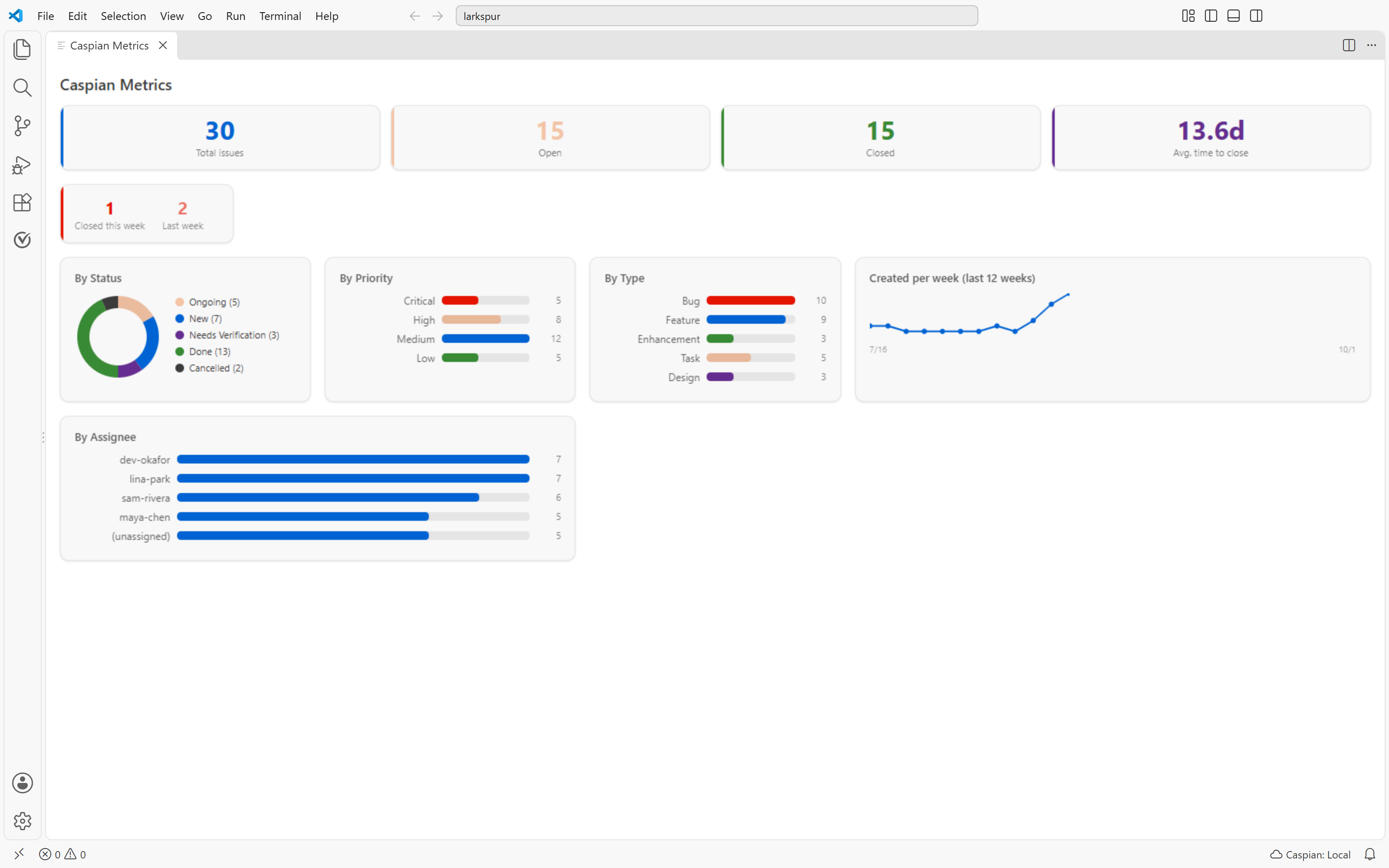
Metrics dashboard Open/closed counts, average time to close, breakdowns by status, priority, type and assignee, and a 12-week trend.
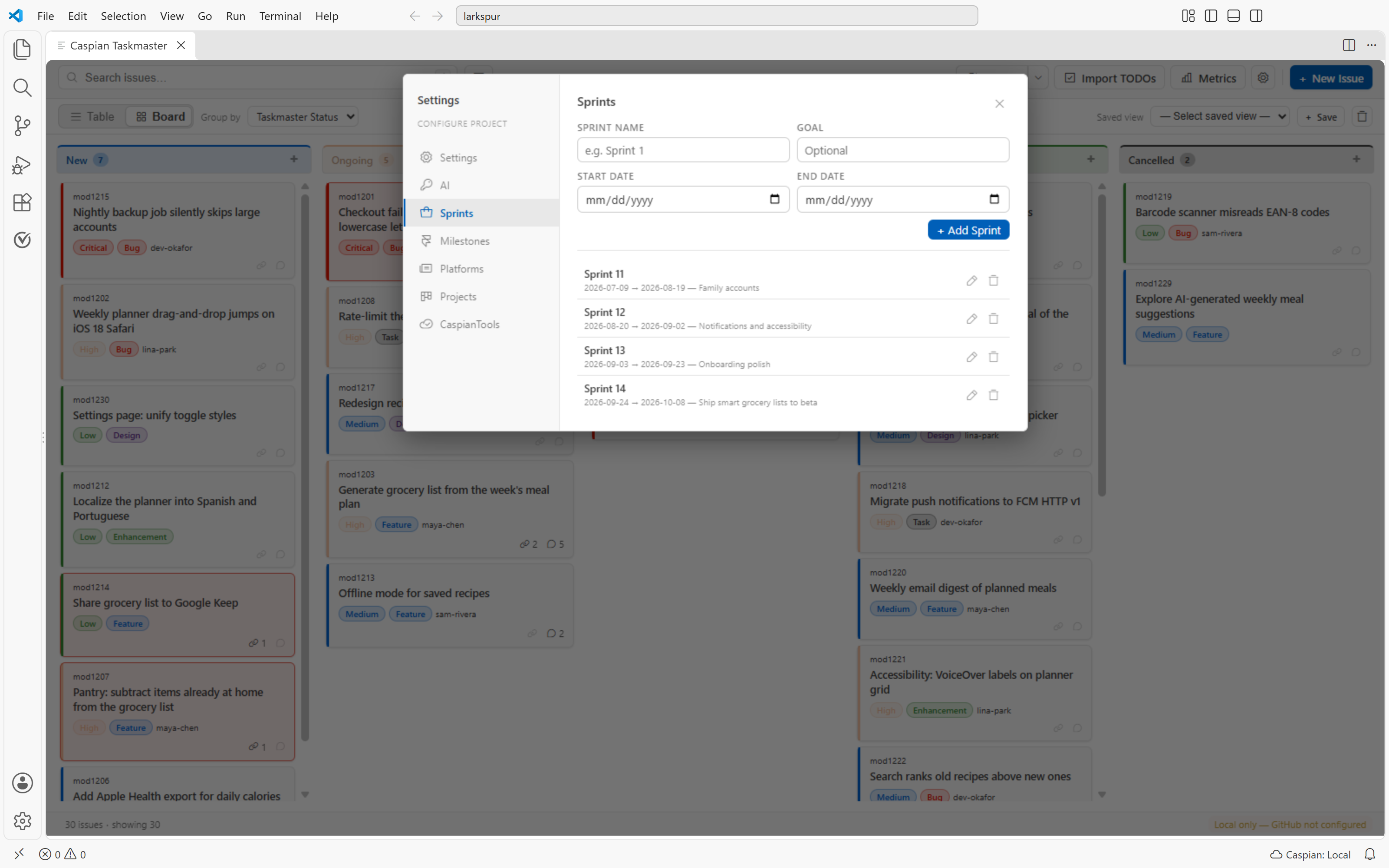
Sprint planning Create sprints with date ranges and goals; track story points per sprint.
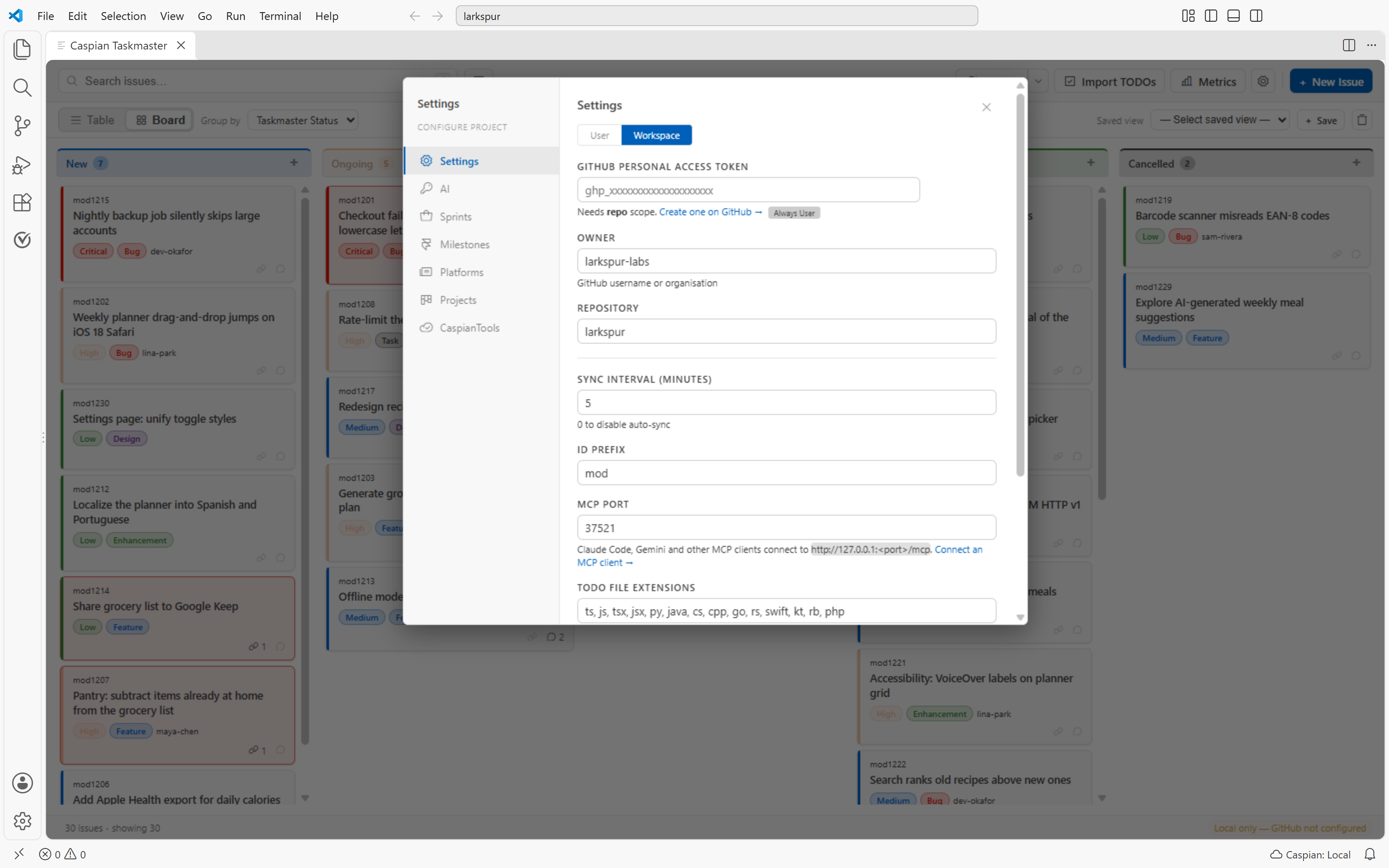
Settings GitHub, AI provider, MCP, sync interval and ID prefix — at user or workspace scope.
Issue fields
Every issue carries the following structured data. All fields are stored locally in JSON and mirrored to GitHub on sync.
| Field | Type | Description |
|---|---|---|
| id | auto | Sequential local ID with configurable prefix — e.g. mod1180. Stable across sync. |
| title | text | Short description of the issue or modification |
| type | enum | Bug / Feature / Enhancement / Task / Design |
| status | enum | New / Ongoing / Needs Verification / Done / Cancelled |
| priority | enum | Critical / High / Medium / Low |
| platform | string | Customizable — 16 defaults (iOS, Android, Web, Desktop/Windows, Desktop/macOS, etc.); manage via Platforms tab |
| categories | text[] | Multi-value free-text tags — an issue can hold multiple labels (e.g. ["Auth", "UI"]). Auto-discovered from existing issues. Filterable from a toolbar OR-match multi-select and persisted in saved views. |
| description | text | Full detail: steps to reproduce, expected vs actual, notes |
| assignee | text | GitHub username of the person responsible. Auto-filled with the configured owner on new issues; editable. |
| createdBy | auto | Set from GitHub owner config on creation |
| createdAt | auto | ISO timestamp, set once on creation |
| updatedAt | auto | ISO timestamp, updated on every save |
| log | array | Full change log — every field edit, who, when, old and new value |
| githubNumber | auto | GitHub issue number, assigned after first sync |
| localDirty | flag | True when there are local changes not yet pushed to GitHub |
Statuses & priorities
Status values
Priority values
Issue types
The change log
Every time any field on an issue is changed, Caspian Taskmaster records a log entry automatically. You never write it manually. The log is a core part of the issue — not an afterthought.
- Timestamp — ISO format, to the second
- Author — who made the change (GitHub username from config)
- Field name — which exact field changed
- Old value and new value — displayed side by side
- Optional note — free-text annotation for context
The log is visible inside the edit modal in reverse chronological order (newest first). It is also written into the GitHub issue body on every sync, so the full history is readable directly on GitHub — not locked inside a local file or your VS Code install.
When an issue is created from GitHub (imported during a pull), the import event is recorded as the first log entry, so you can always see where an issue originally came from.
GitHub bidirectional sync
GitHub Issues is the shared source of truth — readable by collaborators, accessible in the browser, and backed by GitHub's infrastructure. Caspian Taskmaster keeps your local tracker perfectly aligned with it in both directions.
How structured data is stored on GitHub
GitHub Issues only has a title, body, and freeform labels. Caspian Taskmaster uses labels as a structured data layer. Every synced issue gets a set of machine-readable labels:
The local-id label is the stable key that connects a GitHub issue to its local counterpart. Even if the issue title is changed on GitHub directly, Caspian Taskmaster finds the right local record and merges correctly. Without this label, syncing would depend on the GitHub issue number alone — which only works for issues originally created by Caspian Taskmaster, not ones created externally.
Push — local to GitHub
Pull — GitHub to local
GitHub issue comments
Synced issues (those with a githubNumber) show a Comments tab in the edit modal. Comments are fetched live from GitHub on-demand — not stored locally. You can read the full comment thread and post new comments without leaving VS Code. The tab displays a comment count badge, user initials avatars, and handles loading and error states gracefully.
GitHub Projects (v2) integration
Caspian Taskmaster pulls in GitHub Projects (v2) alongside Issues via GraphQL. Unlike Issues (which use REST with labels encoding metadata), Projects v2 is GraphQL-only with strongly-typed custom fields. Caspian Taskmaster handles both transparently.
Setup
- Add the
projectscope to your PAT atgithub.com/settings/tokens(alongside the existingreposcope). - Open Settings → Projects tab (or run the Manage GitHub Projects command).
- Click Refresh. All projects accessible to your token appear — your own projects plus the repo owner's organization/user projects.
- Check the Sync box for each project you want to include. Enabling a project also caches its field metadata (single-select options, iteration options) locally.
What syncs — bidirectionally
- Project memberships — which projects each issue belongs to.
- Every custom field value on each project item — Status, Priority, Iteration, and any user-defined text, number, date, single-select, or iteration field.
Meta fields (Title, Assignees, Labels, Reviewers, Milestone, Linked pull requests, Repository) come from the issue itself and are not duplicated in project data. Pull requests are filtered out entirely.
Where it shows up in the UI
- Projects tab in the issue editor — one card per project, with every field rendered as a type-appropriate input (text box, number, date picker, dropdown). Edit any value inline — the write is pushed to GitHub immediately.
- Add to project — dropdown in the same tab, or the command palette's Add Issue to GitHub Project.
- Remove from project — one-click trash icon on the project card.
- Board view Group by — the Kanban always draws the five Taskmaster status columns; the Group by dropdown (next to the Table/Board switch) adds sub-group headers inside each column so cards cluster by Type, Priority, Platform, Milestone, Assignee, or any synced project's single-select field without leaving their status lane. Drag-and-drop updates Taskmaster status.
- Per-lane add (+) — every status lane header carries a small + icon. Clicking it opens the New Issue modal with Status already set to that lane, so the issue saves directly into the column it was created from — one click instead of opening the modal and reaching for the status dropdown.
Write pattern
Write-through, not batched: project edits are pushed immediately and the local link is only updated on success. Matches how issue comments already work. No batched project-items push during scheduled sync.
project scope is required. Adding a project will surface a clear "add project scope" message if the token is missing the permission.Conflict resolution
When the same issue has been edited both locally and on GitHub between syncs, Caspian Taskmaster applies a deterministic rule — no interactive merge UI, no ambiguity.
The issue has localDirty = true — meaning there are unsaved local changes. The local version is always pushed first before any pull is attempted. GitHub never silently overwrites your unsynced work.
The issue is not locally dirty AND GitHub's updated_at timestamp is newer than the local updatedAt. In that case, GitHub changes are pulled and applied — and the pull is recorded as a log entry.
This rule is intentionally simple. It means that as long as you sync regularly, conflicts are rare. The yellow dot on any issue ID in the table tells you which issues are pending push — so you always know your exposure.
Copy as AI prompt
The simplest form of AI integration — works with any AI assistant, no configuration required.
Click the clipboard icon on any issue row or Kanban card, or Copy in the issue popup. Caspian Taskmaster copies a fully-structured markdown block to your clipboard, including inline images. When pasted into rich text apps (Slack, Gmail, Word, Claude, Gemini), attached images appear as actual images. It includes the type, status, priority, categories, platform, GitHub link, the full description and a list of attachments.
You can also use the command palette → Caspian Taskmaster: Copy Issue as AI Prompt to pick any issue by ID from a quick-pick list without opening the tracker.
MCP server — native AI integration
The more powerful integration. Caspian Taskmaster runs a local MCP (Model Context Protocol) server at http://127.0.0.1:37521/mcp, speaking MCP's Streamable HTTP transport. Connect Claude Code, Gemini or any other MCP client once. From then on the AI can call your issue tracker as a live tool in any conversation, with no copy-paste and no lost context between sessions. Every request carries a bearer token that is created once and kept in VS Code's encrypted secret storage, so the connection survives restarts.
Connect a client
Run Caspian Taskmaster: Connect MCP Client from the command palette. Add to Claude Code registers the server with your Claude Code for the open workspace in one click. The other options copy a ready-made command or config:
Claude Code and Gemini read MCP servers from their own configuration, not from VS Code's settings.json. Regenerate MCP Token replaces the token if it ever leaks.
Available tools
mod1185 — all fields and the complete change log.category still accepted as a substring match). Defaults to 20 results.What this looks like in practice
You open Claude chat in VS Code and type:
Claude calls get_issue("mod1189") automatically, reads the full description, log entries, platform, and priority, then starts working with full context. You never touched the issue tracker UI.
Or say: "Create a critical bug for the login timeout, assign it to me" — and Claude calls create_issue to file it directly. No switching to the tracker.
127.0.0.1 — not accessible from other machines on your network.Claude chat in the issue popup
Talk to Claude about an issue where the issue lives, then let it fix the code. The issue popup gains a Claude tab that drives your own Claude Code: the Claude Code VS Code extension or the claude CLI, signed in with your account. Usage counts toward your Claude plan, exactly as if you were using Claude Code directly. No API key is used or stored, and the extension never reads your credentials.
Discuss first, then fix
- Plan (default for new chats) — Claude reads the issue (fields, description, recent comments, dependencies, code references, screenshots) and your code, discusses it with you, then shows a plan card: Approve → Auto, Approve → Ask first, or Keep planning with your feedback. Nothing changes until you approve.
- Ask first — every edit and command shows an approval card with the command or a –/+ preview: Allow, Allow for this chat, Deny with a note, or Deny & stop.
- Auto — Claude Code's own Auto mode: its classifier lets low-risk actions run and blocks risky ones.
- Replies stream in; each tool call shows as a one-line chip with its output a click away; Stop interrupts at any time; Changed files lists every edit with a git Diff.
The issue keeps itself up to date
Claude's first edit moves a New issue to Ongoing. When Claude finishes a fix, it ends its message with a ## Summary. The summary is posted as a comment on the issue (and synced to GitHub like any comment), and the issue moves to Needs Verification, ready for you to check. Every change is in the Logs tab, marked via Claude Code chat.
Guardrails
- Off by default, and only switchable in your user settings, so a repository can't turn it on, swap the executable or default to Auto.
- Publishing is blocked by default:
git push,git tag,gh release,gh apiand package-publish commands are denied, even if repository instructions say to release after every task. - Issue text reaches Claude as quoted data, not instructions. It never appears on a command line, and Claude's comments are scanned for credential-looking strings before they're posted.
- Conversations persist per issue, resume after a reload, and can be continued in the Claude Code panel (Open in Claude Code). The chat log is kept in local extension storage, never on the issue, so it isn't synced anywhere.
Table features
- Sort by any column — click the header to toggle ascending/descending. The sorted column shows a directional arrow indicator.
- Live search across ID, title, description, categories, and assignee simultaneously as you type.
- Multi-select status checkbox dropdown plus filter dropdowns for type, priority, platform, and a multi-select Category filter — all combinable with each other and with search.
- Status bar at the bottom shows total issue count, how many are currently showing after filters, and how many are pending sync.
- Yellow dot on the ID cell marks any issue with local unsynced changes — visible at a glance without opening the issue.
- Row hover reveals action icons: edit (pencil), copy as AI prompt (clipboard), and open on GitHub (external link icon, greyed out if not yet synced).
- Double-click any row to open the full edit modal for that issue.
- Ctrl+N anywhere in the tracker opens the new issue modal. Ctrl+Enter saves. Esc closes without saving.
- Category field is a chip multi-select with autocomplete — type to filter existing values, Enter or , to add a new chip, Backspace on an empty input to remove the last one. Existing values come from issues already in the store, keeping naming consistent without forcing a fixed list.
Data storage
Issues are stored in a single issues.json file in VS Code's global extension storage (context.globalStorageUri). This is per-machine storage — not workspace-scoped and not tracked by Git. The file persists across VS Code restarts and workspace changes.
The JSON is human-readable and straightforward to back up or inspect manually. GitHub is the collaborative sync layer and serves as the shared backup for teams — everything in local storage is also on GitHub after the next sync.
Configuration reference
| Setting | Default | Purpose |
|---|---|---|
| githubToken | — | GitHub PAT with repo scope. Set via "Caspian Taskmaster: Configure GitHub Repo" command or the Settings popup → Settings tab. |
| owner | — | GitHub username or organisation name |
| repo | — | Repository name without the owner prefix |
| syncIntervalMinutes | 5 | Auto-sync frequency in minutes. Set to 0 to disable auto-sync entirely. |
| idPrefix | mod | Prefix for generated local IDs. Change to bug, feat, task etc. per project or preference. |
| mcpPort | 37521 | Port for the local MCP server. Only one VS Code window can use a port at a time; change it for a workspace that needs its own server, or if another process uses it. |
| todoFileExtensions | common source types | File extensions scanned by Import TODOs. |
| commitWatcherEnabled | true | Auto-close issues when commit messages contain closes/fixes keywords. |
| aiProvider | none | AI provider: none, vscode (Copilot LM API), openai-compatible, or claude. |
| aiEndpoint | — | Base URL for AI API endpoint (Claude defaults to https://api.anthropic.com). |
| aiApiKey | — | API key for OpenAI-compatible or Claude endpoint. |
| aiModel | — | Model name for the AI provider. |
| claudeChat.enabled | false | Turn on the Claude tab in the issue popup. User setting only. |
| claudeChat.defaultMode | plan | Mode new chats start in: plan, default (Ask first) or auto. |
| claudeChat.updateTask | true | Post Claude's summary as a comment and move the issue's status when a fix is done. |
| claudeChat.blockPublishing | true | Block push, tag, release and publish commands in Claude chats. |
| claudeChat.model | — | Model for Claude chats; empty uses your Claude Code default. |
| claudeChat.cliPath | — | Path to the claude executable; empty finds it automatically. Machine setting. |
Out of scope — version 1
The following are intentionally excluded from v1 to keep the scope focused and the codebase clean. Each is a candidate for a future version.
owner as a default, but there is no in-extension user list or autocomplete from GitHub's collaborator list.
media/icon.png (128×128px) for VS Code marketplace listing. The SVG sidebar icon is included; the PNG is not generated.